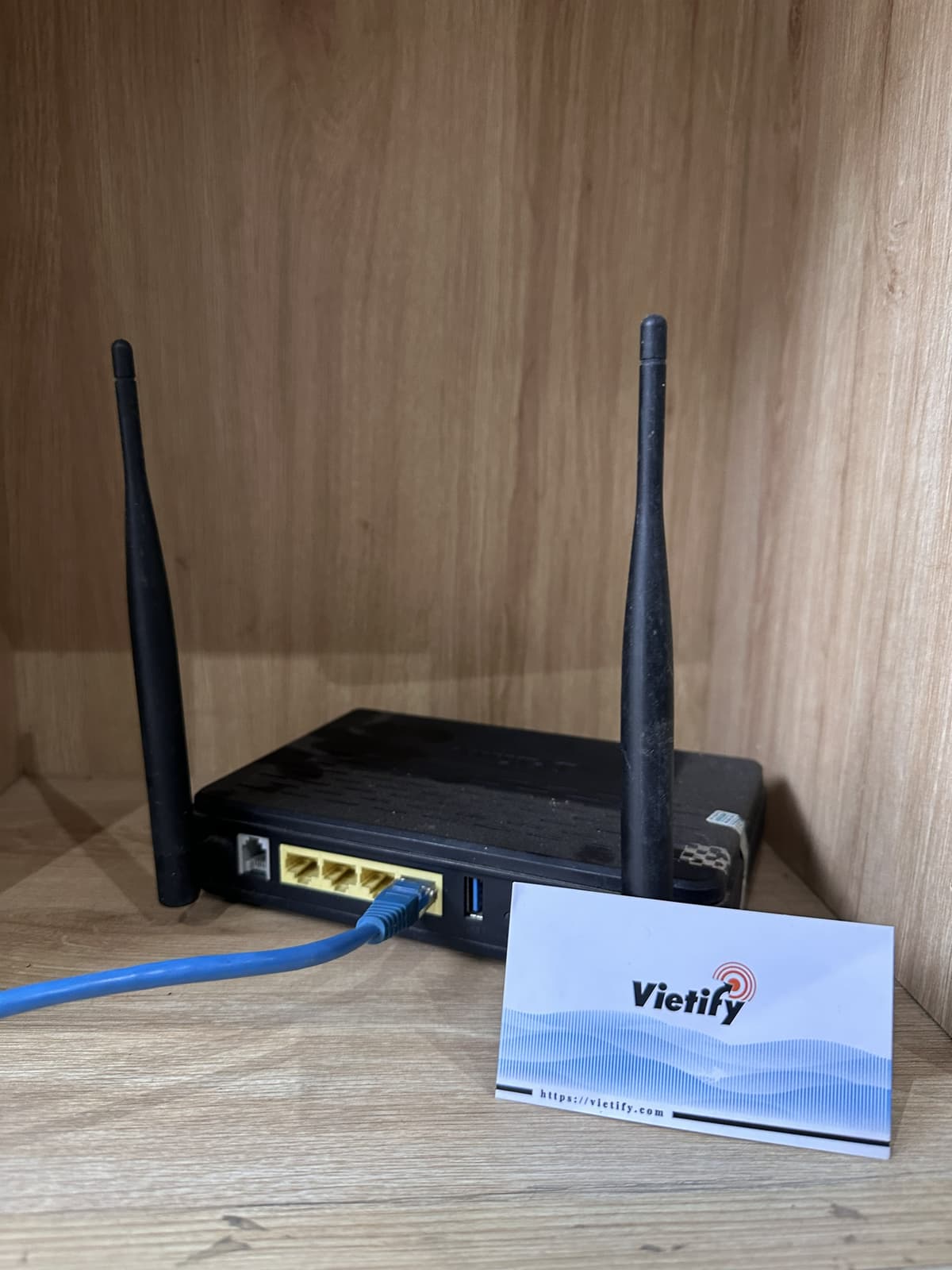
Office Wi-Fi Security: 15-Minute Checklist for Business Owners
Poorly secured office Wi-Fi is the most exploitable backdoor
A coffee shop just opened across from your office. One of its first "customers" is sitting in a parked car, opening a laptop, and scanning the Wi-Fi networks of all surrounding buildings. If your office Wi-Fi has security flaws, he can access your internal systems in 5 minutes — and nobody will know.
According to industry reports in 2025, 47% of SMB office Wi-Fi networks have at least one critical security flaw. Most common: using default router passwords, no guest network separation, and outdated firmware (2+ years). For SMBs in Vietnam, the situation is even more concerning because most networks are installed once by the ISP and never audited again.
Good news: 9 out of 10 of these mistakes can be self-checked by business owners in 15 minutes. No IT skills required.
What does "secure office Wi-Fi" mean?
Secure office Wi-Fi is a wireless network with 3 layers of protection: strong, properly configured passwords; separation between staff and guests; and regular firmware updates. Per OWASP 2025, a Wi-Fi network meeting all 3 layers blocks 95% of common attacks.
Most SMB office Wi-Fi networks lack all 3 layers — because they were set up once by the ISP and never re-audited.
Wi-Fi Security Checklist — 9 Self-Check Points
Point 1: Change the router admin password (NOT the Wi-Fi password)
This is the most common mistake. Each router has 2 different passwords:
- Wi-Fi password — for devices to connect to Wi-Fi
- Admin password — to access the router's management page
90% of businesses change the Wi-Fi password but forget the admin password — leaving it as default "admin/admin" or "admin/password".
How to check:
- Open browser, go to
192.168.1.1or192.168.0.1 - Try logging in with:
- Username:
admin/ Password:admin - Username:
admin/ Password:password - Username:
admin/ Password: (blank)
- Username:
- If you get in → change the admin password immediately to something else (12+ characters, see 7 password rules)
Point 2: Wi-Fi password minimum 12 characters, no company name
Common weak Wi-Fi passwords:
- Company name + year:
acmecorp2026 - Phone number:
5551234567 - Easy guesses:
wifi12345678
Strong Wi-Fi password: Coffee_morning_99!@, Blue_ocean_summer#2026 — use passphrases (sentence-like).
Point 3: Use WPA3 encryption (or WPA2 minimum)
Log into the router admin page, check "Wireless Security" or "Wi-Fi Security":
| Standard | Rating | Action |
|---|---|---|
| Open / None | ❌ Extremely dangerous | Change immediately |
| WEP | ❌ Outdated since 2004 | Change immediately |
| WPA | ❌ Weak | Switch to WPA2/WPA3 |
| WPA2 | ✅ Acceptable | OK |
| WPA3 | ✅ Best | OK |
| WPA2/WPA3 Mixed | ✅ Compatible with old devices | OK |
Newer routers (post-2022) all support WPA3. If your router only has WPA2 → consider upgrading.
Point 4: Separate staff Wi-Fi from guest Wi-Fi (CRITICAL)
This is the most important point but rarely done by SMBs.
Problems with NOT separating:
- Guest connects with virus-infected laptop → virus spreads to staff machines
- Guests can see all devices on the network (computers, NAS, printers)
- If a "guest" is a hacker, they can attack company servers directly
How to deploy:
In your router, find "Guest Network" or "Guest Wi-Fi":
- Enable Guest Network
- Set SSID:
YourCompany_Guest(different from staff Wi-Fi) - Use a completely different password
- Enable "Client Isolation" — important
- Disable "Allow access to local network" — don't let guests see internal network
Takes 10 minutes. Protects your business worth millions.
Point 5: Update router firmware regularly
Routers are computers too — they have security holes that need updates. But 80% of SMBs never update from day of purchase.
How to check:
- Log into router admin
- Find "Firmware Update" or "System Update" tab
- Compare current version with latest on manufacturer's website
- If router is too old (pre-2020) and no new updates → consider replacing
Common router brands needing regular checks:
- TP-Link Archer series
- ASUS
- Netgear
- Linksys / Cisco
- Ubiquiti
Point 6: Disable WPS (Wi-Fi Protected Setup)
WPS allows connecting to Wi-Fi by pressing a button on the router — convenient but has serious security flaws. Hackers can crack the WPS PIN in 4-10 hours and steal the Wi-Fi password.
How to disable:
- Log into router admin
- Find "WPS Settings" or "WPS"
- Select "Disable" or turn off
- Save
Point 7: Don't use "Open" or old "Hidden" Wi-Fi modes
Some routers have modes like:
- Open: Wi-Fi without password — DON'T use for business
- Hidden SSID: Hide the Wi-Fi name — not actual security, just makes employees harder to connect
Skip both. Use WPA2/WPA3 with strong password — that's enough.
Point 8: Disable UPnP (Universal Plug and Play)
UPnP lets devices automatically open ports to the internet. Convenient for game consoles, but dangerous for offices — viruses can self-open ports to communicate with hackers.
In router, find "UPnP", select "Disable".
Point 9: Check connected devices monthly
Log into router admin, find "Connected Devices" or "Client List":
- Count how many devices are connected
- Compare with your number of employees + actual company devices
- If there's a strange device (e.g., named "Unknown" or unrecognized MAC address) → kick it off and change Wi-Fi password immediately
This is an early sign of Wi-Fi intrusion.
Comparison Table: Before & After Checklist
| Situation | Before (default) | After (per checklist) |
|---|---|---|
| Router admin password | "admin/admin" | 16 random characters |
| Wi-Fi password | "acmecorp2026" | "Coffee_morning_99!@" |
| Encryption | WPA / WPA2 (old) | WPA3 or WPA2/WPA3 |
| Guest Wi-Fi | None | Separate SSID + Client Isolation |
| Firmware | 3 years not updated | Latest version |
| WPS | Enabled (default) | Disabled |
| UPnP | Enabled | Disabled |
| Device check | Never | Monthly |
When Do You Need Professional IT?
You can apply the above checklist yourself for 1 office router. But you need professional IT when:
- Multi-floor / multi-area office — needs Mesh Wi-Fi or enterprise Access Points (Ubiquiti, Aruba, Cisco)
- Company with 30+ employees — needs VLAN to separate departments (accounting, server, regular staff, guests)
- Compliance requirements (GDPR, ISO 27001, HIPAA) — needs formal audit
- Need VPN for work-from-home team
Vietify provides Wi-Fi network design and management services for businesses in Da Nang — including site survey, infrastructure design, and ongoing maintenance. Starting from 3M VND/month (~$120) for a 30-person office.
Founder's Advice
According to Thanh Nguyen — Founder, Vietify IT Services:
"When we audit networks for businesses in Da Nang, 9 out of 10 companies have at least one router still using the default admin password. Even worse, 4 out of 10 have no guest Wi-Fi — meaning staff and guests share the same network. This is the easiest hole to fix but the most-left-open. 15 minutes applying this checklist is more effective than a 50 million VND firewall package."
Free Office Wi-Fi Audit
Not sure if your office Wi-Fi is secure enough? Book a free IT assessment — Vietify will check your entire network infrastructure (Wi-Fi, router, switch, firewall) in 30 minutes at your office in Da Nang. PDF report within 24 hours, no commitment.
Conclusion
Secure office Wi-Fi isn't expensive — just 15 minutes and knowing where to click. The 9 points in this checklist apply to all common router brands (TP-Link, ASUS, Netgear, Linksys) and will block 95% of common attacks.
Most important action today: change the router admin password. This single action closes the door on 60% of automated attacks.
Continue reading on this topic:
- 7 Password Rules for Small Business
- How to Spot a Phishing Email in 10 Seconds
- Network & Wi-Fi Management Services for Businesses in Da Nang
Vietify IT Services — Professional IT team for SMBs in Da Nang, Vietnam. Last updated: May 2026 | Author: Thanh Nguyen, Founder, Vietify IT Services
Chia sẻ bài viết
Cần tư vấn IT cho doanh nghiệp?
Vietify IT cung cấp Managed IT từ 4.990.000đ/tháng. Phản hồi trong 30 phút.
Bình luận
Đang tải bình luận…
Để lại bình luận
Cập nhật: 31/8/2026