Business Computer Virus: 60-Minute Emergency Response Procedure
The first 60 minutes after detecting a virus determines damage scope
10 AM Wednesday, the accountant of a 24-employee trading company in Hai Chau, Da Nang calls in panic: "Sir, I just opened an Excel file and a popup appeared, then the screen started jumping by itself. Now my computer is super slow, and antivirus is reporting Trojan infection." The next 60 minutes determine: either contain damage to 1 computer, or let the virus spread across all 24 company computers.
Per Microsoft 2024 research, one infected computer in a corporate internal network can spread to an average of 7 other computers within the first 4 hours if not properly isolated. In Vietnamese business environments — where many companies still use shared network folders and shared USBs — spread speed can be even faster.
This article is the 60-minute emergency response procedure for business owners — without dedicated IT staff. Each step has specific actions and timing.
What is a computer virus? Distinguishing from other malware
"Virus" in common language is often used to refer to all malicious software (malware). In reality there are 6 main types:
| Malware type | Characteristics | Danger level |
|---|---|---|
| Virus | Self-replicates, spreads via files | Medium |
| Worm | Spreads via network automatically | High |
| Trojan | Disguises as useful software | High |
| Ransomware | Encrypts data, demands ransom | Critical |
| Spyware / Keylogger | Steals information | High |
| Adware | Shows advertisements | Low |
| Cryptominer | Mines cryptocurrency on your computer | Medium |
The 60-minute procedure in this article applies to all types except ransomware. If hit by ransomware (files suddenly have .encrypted, .locked, .crypted extensions) — see industry-specific ransomware response guides.
Signs of Computer Virus Infection
Before applying the procedure, confirm the computer is actually infected (not just slow due to other reasons — see 9 fixes for slow computer).
Clear signs (90% certain infection):
- Antivirus popup reporting detected and quarantined files
- Browser auto-opens strange pages, redirects to unfamiliar websites
- Popup ads appear even when browser is closed
- Desktop wallpaper changes by itself
- Files have changed extensions (.encrypted, .crypted) — this is ransomware, different handling
- Computer sends emails to contacts automatically
- Online accounts (Facebook, email, banking) get hijacked
Suspicious signs (50-70%):
- Computer unusually slow, especially right after boot
- Fan running full speed despite not doing anything heavy
- Hard drive light flashing continuously
- Internet unusually slow
- Software auto-starting that you didn't install
60-Minute Emergency Procedure
Minute 0-5: Isolate the Infected Computer (CRITICAL)
Goal: prevent the virus from spreading to other computers in the internal network.
Immediate actions:
- Unplug the LAN cable from the computer
- Turn off WiFi: on Windows, click the WiFi taskbar icon → turn off; or press
Fn + WiFi buttonon laptop - Turn off Bluetooth: prevent spread via Bluetooth devices
- Unplug USB drives, external hard drives: virus may have copied to them
- DON'T TURN OFF the computer: RAM contains important information for later processing
DON'T:
- Restart the computer (may activate virus phase 2)
- Install "antivirus" software downloaded from the web (90% are actually viruses)
- Delete files that "look suspicious" (may be important system files)
Minute 5-15: Assess Scope & Notify
Goal: understand the level and mobilize support.
Questions to answer:
-
Does this computer access the file server / shared NAS?
- Yes → high chance virus spread there. Need to check file server immediately.
- No → good, scope limited.
-
Does this computer contain sensitive data?
- Logged into work email → change password now
- Banking / accounting files → check transaction history
- Passwords saved in browser → change those account passwords
-
How many other computers on the same network?
- 1-3 computers → low risk
- 5+ computers sharing files/printer → high risk, need to check all
Notify relevant parties:
- User of infected computer: ask them to recall what they did in past 24 hours (which files opened, websites visited, USB plugged in)
- All employees: warn if receiving strange emails from company addresses → DON'T open
- IT: call now (Vietify hotline 24/7: +84 236 363 5252 for Managed IT customers)
- Leadership: notify of situation, no delay
Minute 15-30: Determine Spread Scope
Goal: check other computers in network for infection.
On every other computer in the company (including director's):
-
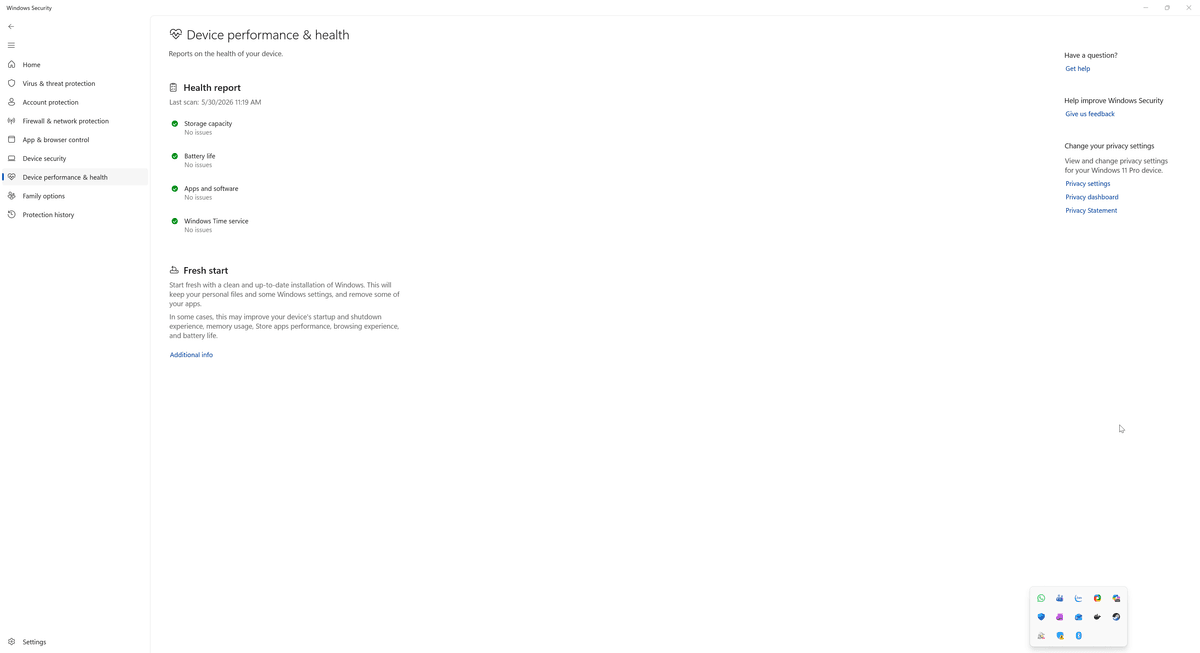
Run Windows Defender Full Scan:
- Settings → Windows Security → Virus & threat protection
- Click "Scan options" → "Full scan" → "Scan now"
- Takes 30-60 minutes, run in background
-
Check Task Manager:
- Press
Ctrl + Shift + Esc - "Processes" tab → sort by CPU
- Strange process consuming >20% CPU for no reason → suspicious
- Process with random name (e.g., "xkjdfh.exe") → suspicious
- Press
-
Check Startup:
- "Startup apps" tab
- Strange software auto-starting → disable and check
-
Check browser:
- Any strange extensions?
- Homepage changed?
- Search engine changed?
If you discover another infected computer: repeat Minute 0-5 (isolation) for that computer.
Minute 30-45: Eliminate Virus on Infected Computer
Step 1: Boot into Safe Mode with Networking
Safe Mode is a Windows mode that loads only minimal drivers — viruses typically can't auto-start in this mode.
How to enter Safe Mode (Windows 10/11):
- Settings → Update & Security → Recovery → Advanced startup → Restart now
- After restart: Troubleshoot → Advanced options → Startup Settings → Restart
- When computer boots, press
5to choose "Safe Mode with Networking"
Step 2: Scan and eliminate virus
In Safe Mode, use a 3-software combo (DON'T install others):
-
Windows Defender Full Scan:
- Already in Windows
- Run Full Scan (60-90 minutes)
-
Malwarebytes Free:
- Download from malwarebytes.com (official link)
- Install → Scan
- Remove all threats
-
AdwCleaner (for adware/browser hijackers):
- Download from Malwarebytes
- Scan → Remove
Step 3: Reset browser
Browsers often get infected with malicious extensions. Reset entirely:
- Chrome: Settings → Reset and clean up → Restore settings to original defaults
- Edge: Settings → Reset settings → Restore settings to default values
- Firefox: Help → More troubleshooting information → Refresh Firefox
Minute 45-60: Verify & Restore
Step 1: Verify computer is clean
Restart normally (not Safe Mode) and check:
- No more strange popups
- Browser opens correct homepage (no redirects)
- Task Manager: no strange processes consuming high CPU
- Network: no strange outgoing traffic
Run a second scan with Windows Defender + Malwarebytes — must be 100% clean to be safe.
Step 2: Change passwords for accounts on this computer
Any account logged in on the infected computer — consider it leaked:
- Work email (Microsoft 365, Gmail) — change immediately + enable 2FA
- Banking, payment apps
- Facebook, LinkedIn, social media
- Accounting software
- Website / CMS admin accounts
See 7 password rules for business security.
Step 3: Update all software
- Windows Update → install all pending updates
- Browsers updated to latest
- Office, Adobe, etc. software
Step 4: Backup clean data
Before computer is used again, backup immediately to external drive or OneDrive — in case full reset is needed later. OneDrive backup guide.
Summary Table: 60-Minute Procedure
| Minute | Action | Goal |
|---|---|---|
| 0-5 | Isolate computer (unplug LAN, turn off WiFi, unplug USB) | Prevent spread |
| 5-15 | Assess scope, notify IT/leadership | Understand situation |
| 15-30 | Check other computers in network | Detect spread |
| 30-45 | Boot Safe Mode, scan and eliminate virus | Handle infection |
| 45-60 | Verify, change passwords, backup | Complete |
When Should You Reset the Computer Completely?
After the 60-minute procedure, 70% of infected computers will be clean. Remaining 30% — virus too deep, hidden in rootkit or bootloader — need complete reset.
Signs you need to reset Windows:
- Multiple scans still detect virus returning
- Computer still abnormally slow after clean scans
- Signs of rootkit (process can't be deleted, antivirus won't start)
- Ransomware infection (need reset + restore from backup)
Correct reset method:
- Backup clean data first (if not done)
- Settings → Update & Security → Recovery → Reset this PC
- Choose "Remove everything" (delete all — safest)
- Reinstall Windows + necessary software
- Restore data from backup (after virus-scanning backup data)
Takes 2-4 hours. This is the 100% guaranteed clean method.
Reinfection Prevention — 6 Measures
After resolving the issue, apply 6 measures to prevent recurrence:
1. Use Windows Defender instead of other free antivirus
Windows Defender (built into Windows 10/11) is much better than people think:
- Free
- Doesn't slow computer
- Auto-updates with Windows Update
- Microsoft has improved since 2020 — currently top 3 antivirus globally (AV-Test 2025)
Avoid other free antivirus (Avast Free, AVG Free, 360 Total Security) — typically have adware or slow computers.
2. Upgrade to Microsoft Defender for Business (for businesses)
Microsoft 365 Business Premium (~$22/user/month) includes Defender for Business — enterprise-grade protection:
- Endpoint Detection and Response (EDR)
- Auto-isolate infected machines
- Centralized management from admin console
- Advanced ransomware protection
This is the best solution at this price point for SMBs. See Microsoft 365 plans.
3. Train employees to recognize phishing
90% of viruses enter through phishing emails. Train employees on the 6 recognition signs — see How to Spot a Phishing Email in 10 Seconds.
4. Forbid installing unauthorized software
Company rule: employees CANNOT install software themselves. Need to install → request IT approval and installation.
Implementation: use Standard User account (not Administrator) for all employees — they can't install themselves, need admin password.
5. Auto-update Windows
Set up automatic Windows Update for every machine. 60% of viruses exploit vulnerabilities with patches available for 3+ months.
6. Backup following 3-2-1 rule
When all measures fail, backup is the lifeline. See OneDrive Backup 5 Steps and Data Loss — 5 Recovery Steps.
Case Study: 2 Virus Incidents in Da Nang
According to Thanh Nguyen, Founder of Vietify IT Services:
"In cases we handle, the difference between $200 vs $20,000 damage often lies in the first 60 minutes. A 12-person company in Son Tra — accountant detected virus, called us in 8 minutes, isolated correctly, only 1 machine affected. Another 18-person company in Lien Chieu — employee restarted computer multiple times to 'fix it', didn't isolate, after 6 hours all 18 machines infected. Second case lost 3 work days + $3,200 in costs."
Case 1 — Correct procedure (Trading Son Tra)
- 9:15 — Accountant detected antivirus alert
- 9:18 — Accountant unplugged LAN, turned off WiFi (had been trained)
- 9:23 — Called Vietify hotline
- 9:28 — Vietify remotely diagnosed other computers on same network
- 10:45 — Confirmed only 1 machine infected, others clean
- 11:30 — Completed virus elimination on infected machine
- 14:00 — Machine back to normal operation
- Total damage: 0.5 days productivity for 1 employee = ~$20
Case 2 — Wrong handling (Construction Lien Chieu)
- 14:00 — Employee saw weird behavior, restarted
- 14:15 — Still weird, restarted again, installed antivirus from Google search (the antivirus itself was malware)
- 15:30 — Colleague reported their machine acting weird too
- 16:00 — End of day, went home, didn't notify IT
- Next day, 8:00 — Discovered 12/18 machines infected
- 9:00 — Called IT (not Vietify yet)
- 3 days later — Resolution complete
- Total damage: 3 days × 18 employees productivity + $3,200 emergency IT costs + 2 contracts missed deadlines
FAQ About Business Computer Viruses
Is antivirus really necessary?
Necessary for every business computer. Minimum Windows Defender (free, good). Ideal: Microsoft Defender for Business or Bitdefender GravityZone.
Do Macs need antivirus?
Yes, though less than Windows. Macs have their own malware (Silver Sparrow, XLoader, Shlayer). Recommend: Malwarebytes for Mac or CleanMyMac X.
Can Android/iOS phones get viruses?
iOS is nearly immune (tight sandbox). Android can be infected — especially when installing apps outside Play Store. Recommendation: only install apps from Play Store/App Store, check permissions.
Is installing multiple antivirus safer?
No. Two antivirus programs conflict, slow down the machine, and weaken security. Install only 1.
After eliminating virus, do I need to change passwords?
Yes, mandatory. Virus may have stolen passwords saved on the machine. Change passwords for every account logged in on that machine.
Can data be lost during virus elimination?
Rare. Antivirus typically quarantines instead of deleting. However, ransomware may have already encrypted files — virus elimination doesn't recover them.
24/7 Emergency Support
If your company just discovered a virus and needs support:
Vietify Hotline 24/7: +84 236 363 5252 Email emergency: [email protected]
Vietify provides Incident Response service for Managed IT customers — SLA 1-hour response for Pro plan, 15 minutes for IT Partner. See service plan details.
If not yet a Managed IT customer, you can still call — Vietify supports ad-hoc with $60/hour on-site, $32/hour remote.
Security Assessment Before Attack
The best way to handle viruses is to never get infected. Book a free IT assessment — Vietify audits your company's entire endpoint security (antivirus, Windows update, group policy, user privileges) and recommends a hardening plan. PDF report within 24 hours, no commitment.
Conclusion
Computer viruses in business environments are real and growing risks. Bad news: 100% of businesses will encounter at least once. Good news: correctly handling the first 60 minutes can limit damage to 1 machine instead of spreading company-wide.
3 most important things:
- Train employees on this 60-minute procedure — especially the isolation step (unplug LAN/WiFi, don't turn off, don't restart)
- Have 24/7 IT contact — phone number visible on every machine
- Good backup — preparation for worst case requiring machine reset
Action today: print this article, post on the wall near main machines (accounting, sales lead, director). When incidents happen, anyone reads and can correctly handle the first 60 minutes.
Continue reading on this topic:
- How to Spot a Phishing Email in 10 Seconds
- Sudden Data Loss: 5-Step Emergency Recovery
- 7 Password Rules for Small Business
- IT Security Services for Businesses in Da Nang
- 24/7 Proactive Monitoring — Vietify
Vietify IT Services — Professional IT team for SMBs in Da Nang, Vietnam. Last updated: May 2026 | Author: Thanh Nguyen, Founder, Vietify IT Services
Chia sẻ bài viết
Cần tư vấn IT cho doanh nghiệp?
Vietify IT cung cấp Managed IT từ 4.990.000đ/tháng. Phản hồi trong 30 phút.
Bình luận
Đang tải bình luận…
Để lại bình luận
Cập nhật: 31/8/2026