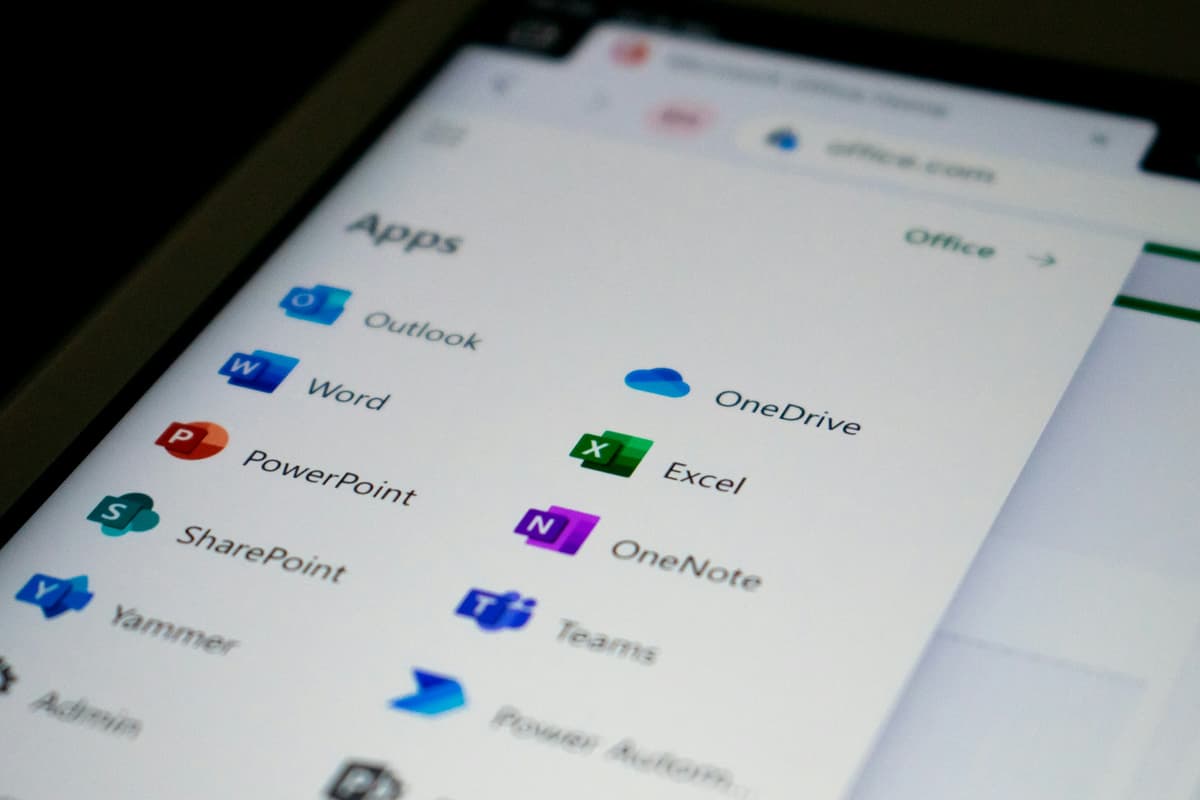
Automatic Backup with OneDrive: 5-Step Guide for Small Business
Automatic backup is the cheapest insurance against data loss
Friday morning, the chief accountant of a Da Nang construction company sends a panicked message: "My laptop is lost — 3 years of accounting files were on it." The problem: the laptop was never backed up. 3 years of data — 2,400 invoices, 18 tax reports, 350 customer records — gone.
According to industry surveys in 2025, 60% of SMBs lose important data at least once per year, and 47% of them cannot recover because they have no backup. Of 100 businesses with serious data loss, 23 go bankrupt within 6 months (per Strategic Research Corp).
Good news: if your company uses Microsoft 365 (M365), you already have automatic backup tools — just need to enable them. This guide takes 30 minutes, no IT hire needed.
What is OneDrive backup and why does it matter?
OneDrive backup is a feature that automatically syncs Desktop, Documents, and Pictures folders on employee computers to Microsoft cloud. When enabled, every new or changed file in these folders is backed up within seconds — even if the computer is broken, lost, burned, or hit by ransomware.
Per Microsoft 2025, OneDrive with Microsoft 365 Business Standard offers unlimited backup with 1TB per user, plus a "Files Restore" feature allowing rollback of the entire OneDrive to any point in the last 30 days.
Comparison with other options:
| Method | Cost | Automatic | Restore after 30 days | Ransomware-resistant |
|---|---|---|---|---|
| Manual copy to USB | Free | ❌ | ❌ | ❌ |
| Personal Google Drive | Free (15GB) | ✅ | ❌ | ⚠️ |
| Dropbox Personal | Free (2GB) | ✅ | ❌ | ⚠️ |
| OneDrive M365 Business | ~$8/user/month | ✅ | ✅ | ✅ |
| Pro backup (Veeam, Acronis) | $2-10K setup | ✅ | ✅ | ✅ |
For SMBs with 5-30 employees, OneDrive M365 hits the sweet spot of cost and features.
5 Steps to Set Up OneDrive Backup for Business
Step 1: Ensure your company has Microsoft 365 Business Standard or higher
OneDrive backup full features require these plans:
- M365 Business Basic (~$6/user/month): 1TB OneDrive, no desktop Office
- M365 Business Standard (~$12.50/user/month): 1TB OneDrive + desktop Office ✅ Recommended
- M365 Business Premium (~$22/user/month): Like Standard + advanced security
If your company still uses Gmail or personal email — migrate to M365 first. Vietify provides free migration with Microsoft 365 plans.
Step 2: Install OneDrive client on employee computers
On Windows 10/11: OneDrive is pre-installed — just sign in with your M365 account.
On Mac:
- Download OneDrive from App Store
- Sign in with company account (
@yourcompany.com)
On phone (optional):
- Install OneDrive app from Google Play / App Store
- Enable "Auto-upload Camera Roll" to back up screenshots, contracts photographed
Step 3: Enable "PC Folder Backup" (most important)
This is the step employees often skip. Windows instructions:
- Click OneDrive icon in taskbar (bottom right, blue cloud)
- Click gear → "Settings"
- "Sync and backup" tab → click "Manage backup"
- Enable all 3 folders: Desktop, Documents, Pictures
- Click "Start backup"
After enabling, every file in these 3 folders is automatically backed up. Employees don't need to do anything else.
Important note: if employees save files on D: drive or other locations (e.g., D:\Accounting), they need to move them to Documents or use a different backup solution.
Step 4: Set up SharePoint for shared files
Personal files go to OneDrive. Shared files (department reports, client contracts) must go to SharePoint — not personal OneDrive.
Why: if an employee leaves the company, their personal OneDrive will be deleted after 30 days — taking all files with it. SharePoint belongs to the company and is unaffected.
Quick setup:
- Go to portal.office.com → SharePoint
- Create Sites for each department: "Accounting", "Sales", "Marketing"
- Set permissions: only that department's employees can access
- Train employees: personal files → OneDrive, department files → SharePoint
Step 5: Test restore (CRITICAL — don't skip)
Backup is meaningless if you can't restore. Test immediately after setup:
Test 1 — Restore a single file:
- Create a test file on Desktop (e.g.,
test_backup.txt) - Wait 1 minute for OneDrive to sync
- Delete the file
- Go to OneDrive web (onedrive.live.com) → Recycle bin
- Restore file → check it appears back on Desktop
Test 2 — Restore from 30 days ago:
- Go to OneDrive web → Settings → "Restore your OneDrive"
- Check if you can select a recovery date in the past 30 days
- This is the lifesaver feature when ransomware hits
If both tests pass → backup is working correctly.
Common Mistakes When Deploying OneDrive Backup
According to Thanh Nguyen, Founder of Vietify IT Services:
"When we audit businesses already using M365, 80% are using OneDrive like Google Drive — manually saving files. They don't know about PC Folder Backup or Files Restore. They pay $12.50/user/month but only use 30% of features. One proper setup session is worth 50 manual data recoveries later."
5 common mistakes:
-
Saving files on D: drive or self-created folders — won't be backed up. Must save in Desktop, Documents, Pictures.
-
Disabling OneDrive because "computer is slow" — wrong. OneDrive runs in background, barely impacts performance. If the computer is slow → check the 9 fixes for slow computer.
-
Using personal Microsoft account instead of company M365 — backup files end up in personal account, company has no control when employee leaves.
-
Not setting up SharePoint, using personal OneDrive for sharing — when employees leave, files leave with them.
-
Not testing restore — by the time you need it, you discover backup hasn't run for 6 months.
Is OneDrive Enough Against Ransomware?
Short answer: enough for SMBs of 1-30 people, but not enough for larger enterprises or healthcare/finance industries.
OneDrive has automatic "Ransomware Detection" alerting when many files are encrypted at once. "Files Restore" allows rolling back the entire account to 30 days ago.
However, for comprehensive protection — especially after a major ransomware attack — you also need:
- Offsite backup (second cloud): Backblaze B2, AWS S3 Glacier
- Backup following 3-2-1 rule: 3 copies, 2 media types, 1 offsite
- Monthly backup tests
- Documented Disaster Recovery Plan
When Do You Need IT Support?
You can apply the 5 steps above yourself for 1-3 machines. But you need professional IT when:
- Need to deploy for 10+ machines simultaneously — via Group Policy (Windows AD) or Intune (M365)
- Migration from Gmail / personal email with 5+ years of data
- SharePoint setup with complex departmental structure
- Need to back up specialized software (accounting, design, CAD) outside OneDrive
Vietify provides Microsoft 365 + OneDrive deployment package for businesses in Da Nang — setup, migration, training, support — starting from 3M VND/month (~$120) for a 10-30 person office.
Check Your Company's Backup Status
Book a free IT assessment — Vietify will audit your current entire backup system (OneDrive, SharePoint, file server, USB) and recommend an optimal plan in 30 minutes. PDF report within 24 hours, no commitment.
Conclusion
OneDrive backup isn't a perfect solution for every business, but for SMBs with 5-30 people on M365, it's the cheapest, easiest, and most effective way to protect data from 90% of common incidents.
Most important action today: enable PC Folder Backup for the boss's computer and chief accountant's computer — the 2 positions storing the most critical company data. 5 minutes setup, billions of dollars protected.
Continue reading on this topic:
- Professional Business Email in 30 Minutes
- Sudden Data Loss: 5-Step Emergency Recovery
- Microsoft 365 Services for Businesses in Da Nang
Vietify IT Services — Professional IT team for SMBs in Da Nang, Vietnam. Last updated: May 2026 | Author: Thanh Nguyen, Founder, Vietify IT Services
Chia sẻ bài viết
Cần tư vấn IT cho doanh nghiệp?
Vietify IT cung cấp Managed IT từ 4.990.000đ/tháng. Phản hồi trong 30 phút.
Bình luận
Đang tải bình luận…
Để lại bình luận
Cập nhật: 31/8/2026