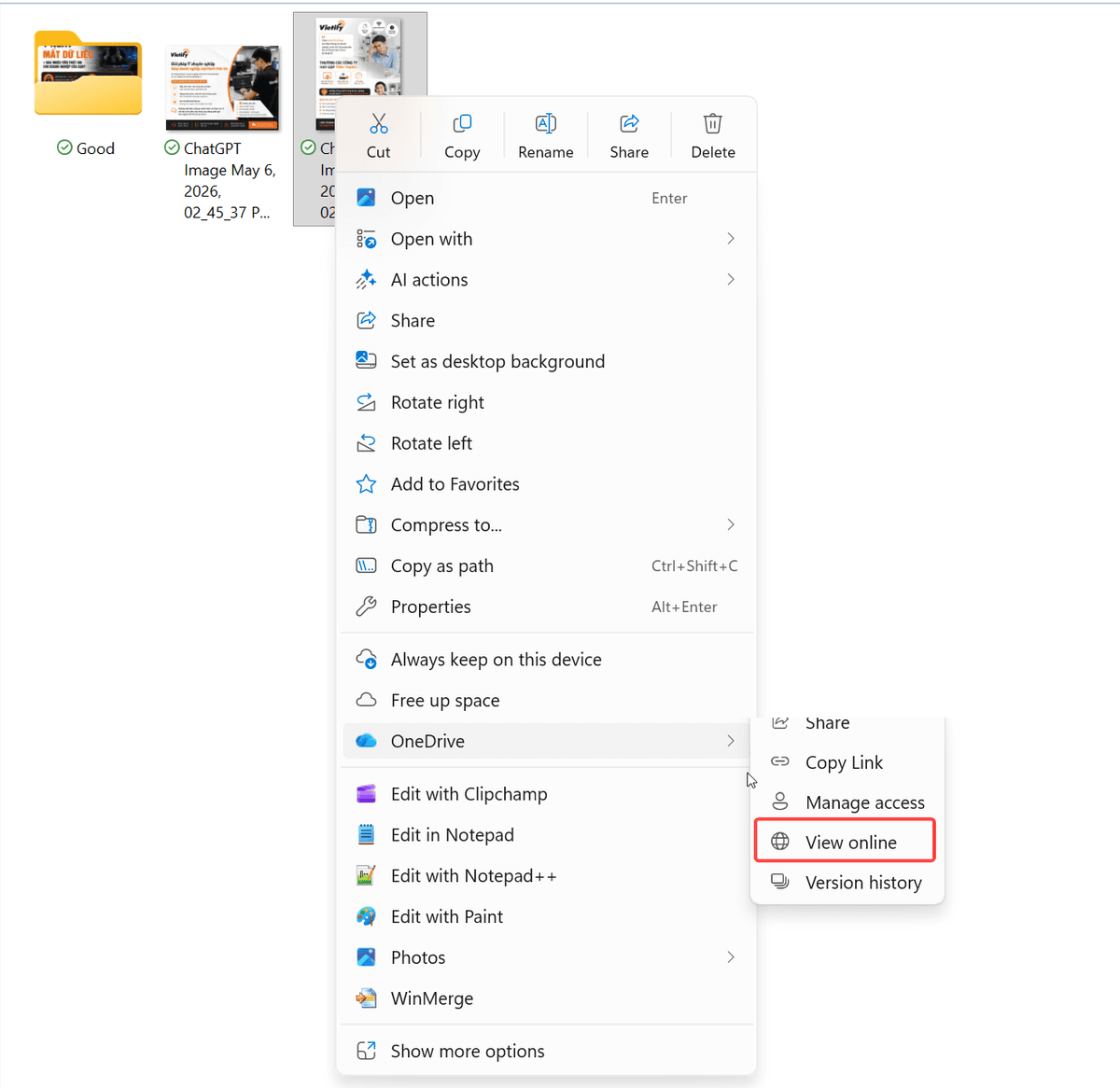
Restore Deleted OneDrive Files in 15 Minutes
A controlled recovery sequence prevents a good version from being overwritten during a OneDrive incident.
When a OneDrive file disappears, do not rush to edit or synchronize more copies before you know what happened. Check the OneDrive recycle bin, version history, and related SharePoint location first. For accounting, contract, or customer data, record the incident time and notify IT before several people begin making changes.
Quick Answer
OneDrive makes files available and synchronized, but deletion, renaming, corruption, or encryption can affect several devices. Correct recovery is often straightforward. Uncontrolled recovery, however, can make it difficult to identify the right version after multiple users modify files.
Điểm quan trọng nhất là không xử lý dựa trên cảm giác “có vẻ đúng”. Với các công việc liên quan đến tiền, tài khoản, email, file dùng chung hoặc quyền truy cập, doanh nghiệp cần một bước xác minh có thể lặp lại. Người thực hiện không cần phải là chuyên gia IT; họ chỉ cần biết khi nào phải dừng lại, kiểm tra ở đâu và ai là người cần được thông báo.
Fast Action Checklist
| Check | What to do | Safe decision |
|---|---|---|
| Recently deleted file | Check the OneDrive web recycle bin. | Confirm owner and original location before restore. |
| Overwritten file | Open Version History. | Compare timestamp, editor, and content before restoring. |
| Shared-folder file | Check SharePoint or the site recycle bin. | Notify the folder owner before acting. |
| Sync problem | Check sync status and other devices. | Do not overwrite with an unverified local copy. |
| Sensitive data | Record time and affected location. | Ask IT to review permissions and unusual activity. |
Bảng này nên được lưu cùng quy trình nội bộ, không chỉ đọc một lần. Với các nhóm kế toán, hành chính, bán hàng và quản lý, hãy dùng bảng trong buổi onboarding ngắn để mọi người biết cách phản ứng thống nhất.
Step-by-Step Safe Workflow
1. Stop editing and notify other collaborators if necessary.
Proceed carefully, record important details, and verify the outcome before moving to the next step. If several people are involved, assign one person as the point of contact to avoid conflicting changes or duplicate actions.
2. Sign in to OneDrive on the web with the business account and open Recycle Bin.
Proceed carefully, record important details, and verify the outcome before moving to the next step. If several people are involved, assign one person as the point of contact to avoid conflicting changes or duplicate actions.
3. Search by name, deletion date, or user, then confirm the correct file before restoring.
Proceed carefully, record important details, and verify the outcome before moving to the next step. If several people are involved, assign one person as the point of contact to avoid conflicting changes or duplicate actions.
4. If the file exists but content is wrong, inspect Version History for an earlier version.
Proceed carefully, record important details, and verify the outcome before moving to the next step. If several people are involved, assign one person as the point of contact to avoid conflicting changes or duplicate actions.
5. Open the restored file and ask the business owner to validate its content.
Proceed carefully, record important details, and verify the outcome before moving to the next step. If several people are involved, assign one person as the point of contact to avoid conflicting changes or duplicate actions.
6. Check synchronized devices to confirm the correct copy appears and is not overwritten again.
Proceed carefully, record important details, and verify the outcome before moving to the next step. If several people are involved, assign one person as the point of contact to avoid conflicting changes or duplicate actions.
What Not to Do
- Do not create many same-named copies before determining which one is correct.
- Do not restore an entire shared library without defining the incident scope.
- Do not assume OneDrive is an independent complete backup for every workload.
- Do not wait to contact IT if mass deletion or ransomware is suspected.
Những lỗi này thường xảy ra vì nhân viên muốn xử lý nhanh để không làm chậm công việc. Tuy nhiên, một phút dừng lại để xác minh thường rẻ hơn nhiều so với khôi phục tài khoản, xử lý mất dữ liệu hoặc sửa một giao dịch sai.
Turn This Guide Into a Company Process
After handling the issue once, record three things: the owner, the reporting channel, and the response target. Then run a short scenario exercise, such as a payment-detail-change email or a deleted OneDrive file. The aim is not to frighten staff; it is to help them make the correct first decisions within minutes.
The business should also review access rights, former-user accounts, inactive devices, and file-sharing rules regularly. These controls often determine whether a small incident stays with one user or affects the whole organization. See IT security services, Microsoft 365 services, or request a free IT assessment.
Frequently Asked Questions
Can deleted OneDrive files be restored?
Many can be restored through the recycle bin or version history within the applicable retention period. Check as soon as possible.
Can restoration remove newer work?
It can if the wrong version is selected or recovery is uncontrolled. Confirm timestamp and content first.
What if an entire SharePoint folder was deleted?
Notify IT or the Microsoft 365 administrator immediately because recovery rights and process may differ from personal OneDrive.
Is OneDrive a complete backup?
Not by itself. Synchronization and version history help recovery, but critical data should have independent backup and tested restore procedures.
Next Step
If this problem is recurring, affects sensitive data, or has no clear owner, request an assessment to turn the steps above into a process with accountable people. Contact Vietify IT Services for assistance with environment checks, process setup, and troubleshooting for email, Microsoft 365, backup, or security issues.
Vietify IT Services — IT and licensed software partner for businesses in Da Nang.
Chia sẻ bài viết
Cần tư vấn IT cho doanh nghiệp?
Vietify IT cung cấp Managed IT từ 4.990.000đ/tháng. Phản hồi trong 30 phút.
Bình luận
Đang tải bình luận…
Để lại bình luận
Cập nhật: 31/8/2026