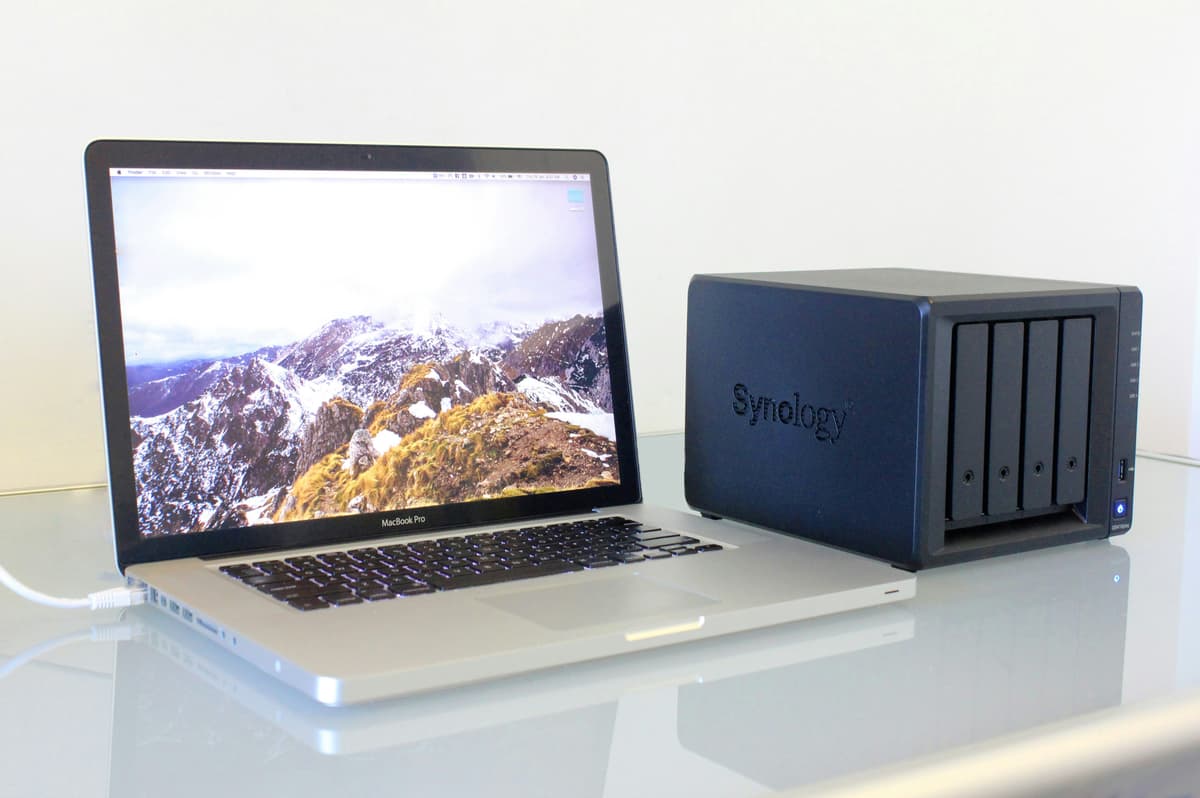
Backing Up a Synology NAS: The Right Configuration Guide for Small Businesses
A Synology NAS is an excellent device — but only when configured correctly. Many businesses believe they have backup when they actually just have "a second network drive".
What Is Synology NAS and Why Is It So Common in Vietnam?
NAS (Network Attached Storage) is a storage device connected to the network that allows multiple users to access shared files over the local network. Synology is the most popular NAS brand in Vietnam because:
- The DSM (DiskStation Manager) interface is user-friendly and requires no deep technical knowledge
- Rich built-in applications (backup, cloud sync, camera monitoring, etc.)
- High reliability at a reasonable price (5–30M VND depending on model)
- A rich software ecosystem
However, a NAS is just storage — not a backup unless additional configuration is performed.
The Common Mistake: "We Have a Synology File Server — That's Enough"
This is the most common misconception we encounter:
Incorrect setup:
Employee computers → Synology NAS (shared file storage)
In this setup, the NAS is not a backup — it's just shared storage space. If:
- Someone accidentally deletes a file → permanently gone
- Ransomware spreads across the network → encrypts the NAS too
- The NAS has a hardware failure → data is lost
Correct setup:
Employee computers ← → Synology NAS (file server)
                              ↓
                    Cloud Backup (Wasabi/Backblaze) [immutable]
                              ↓
                    Second NAS / offsite device
Setting Up Proper Backup with Synology NAS
Step 1: Enable Snapshots and Versioning
DSM provides Snapshot Replication, allowing you to create point-in-time recovery points:
- In DSM → Storage Manager → Volume → select volume → Snapshot
- Enable Scheduled Snapshot:
- Every 15 minutes during business hours (if volume is small)
- Or every hour (standard for most SMBs)
- Enable Snapshot Locking — prevents snapshots from being deleted
- Set retention: 48 hourly snapshots + 30 daily snapshots + 12 monthly
Important note: Synology snapshots protect against accidental deletion and minor errors — they do NOT protect against ransomware if ransomware can reach the NAS over the network.
Step 2: Configure Hyper Backup to Immutable Cloud
Hyper Backup is Synology's built-in backup application. To back up to Wasabi with Object Lock:
- Install Hyper Backup from Package Center
- Create a new Backup Task → select S3-Compatible Storage
- Enter Wasabi details:
- Server:
s3.wasabisys.com(or region-specific endpoint) - Bucket name: the bucket you created with Object Lock enabled
- Access Key and Secret Key (a separate account used only for backup)
- Server:
- Select folders to back up
- Set schedule: daily at 02:00 (outside business hours)
- Enable Client-side Encryption — encrypts data before uploading
Object Lock configuration on Wasabi:
Retention Period: 30 days (minimum)
Mode: Governance (sufficient for most SMBs)
Lifecycle Policy: Delete old versions after 90 days
Step 3: Back Up to an Offsite Device
Synology Active Backup for Business can replicate backups to a second NAS at another location via QuickConnect or VPN:
- Install Active Backup for Business on the main NAS
- Add the second NAS as a destination
- Schedule daily sync
- Configure bandwidth throttling to avoid affecting business hours
If you don't have a second NAS: rotating external hard drives are a simple and effective alternative:
- Purchase 3 external drives
- Connect one per day, back up, then disconnect
- Rotate — always have 1 drive offsite (at the director's home)
Step 4: Active Backup for Business (Employee Workstations)
Active Backup for Business lets you back up all employee computers to the NAS:
- Install Active Backup for Business on the NAS
- Install Active Backup for Business Agent on employee computers
- Configure:
- Continuous backup during business hours
- Retain 30 file versions
- Full-machine (bare-metal) backup weekly
- Result: if an employee's machine fails, full restoration takes 2–4 hours
Securing Your NAS Against Ransomware
This is the most important and most frequently skipped step:
Disable SMB If Not Required
SMB (Server Message Block) is the file-sharing protocol that lets Windows computers access the NAS. Ransomware spreads primarily via SMB:
- Only enable SMB when genuinely needed
- Disable SMB 1.0 immediately (old, insecure protocol)
- Enable SMB signing
Create Dedicated Backup Accounts
Never use an admin account for backup jobs. Create dedicated accounts:
backup-wasabi— upload to Wasabi only, no delete permissionbackup-agent— backup from employee machines to NAS only
If ransomware obtains the backup-wasabi credentials, it still cannot delete the cloud backup (Object Lock + restricted permissions).
Isolate the NAS from the General Network (VLAN)
Configure your switch to place the NAS on its own VLAN:
- Employee workstations VLAN 10 → can access file shares, CANNOT access DSM admin panel
- Servers VLAN 20 → full NAS access
- NAS VLAN 30 → outbound backup only, no inbound connections from employee VLAN
Synology DSM Security Checklist
- DSM updated to latest version
- Default admin account renamed or disabled
- MFA (two-factor authentication) enabled for all admin accounts
- DSM not exposed to the internet (ports 5000/5001 not forwarded)
- QuickConnect used instead of direct port forwarding
- SMB 1.0 disabled
- Snapshot running with Snapshot Locking enabled
- Hyper Backup to immutable cloud running daily
- Backup logs reviewed weekly

Recommended Synology NAS Models for SMBs
| Model | Bays | Users | Price (approx.) | Notes |
|---|---|---|---|---|
| DS423 | 4-bay | 5–10 people | ~12M VND | Most popular for small SMBs |
| DS923+ | 4-bay | 10–20 people | ~18M VND | Expandable, supports SSD cache |
| DS1522+ | 5-bay | 20–30 people | ~22M VND | Good balance of capacity and performance |
| RS1221+ | Rack 4-bay | 30+ people | ~30M VND | For rack-mounted server environments |
Prices exclude drives.
Vietify IT Sets Up and Manages Synology NAS for You
We provide full setup and management services for Synology NAS in Da Nang:
- Review current configuration and identify security gaps
- Configure Snapshot, Hyper Backup, and Active Backup for Business
- Set up Object Lock on Wasabi / Backblaze
- Harden the NAS: disable SMB1, configure VLAN, enable MFA, separate backup accounts
- Monitor backup logs daily with instant alerting
- Restore testing on a regular schedule
Free NAS Assessment. We'll review your Synology configuration and tell you exactly what needs to change for real protection.
Call: 0914 985 772 | vietify.vn/contact
Vietify IT Services — Synology NAS Setup and Data Protection Specialists in Da Nang.
Chia sẻ bài viết
Cần tư vấn IT cho doanh nghiệp?
Vietify IT cung cấp Managed IT từ 4.990.000đ/tháng. Phản hồi trong 30 phút.
Bình luận
Đang tải bình luận…
Để lại bình luận
Cập nhật: 31/8/2026